Trading Pack overview
Summit workspaces get suppliers, purchase receipts, returns, AR/AP balances, payments, opening balances, and trading reports. Cash sales stay simple; credit sales post to the customer balance.
-
Step 1
Find Trading in the sidebar
After your plan includes Trading, open the Trading group: Suppliers, Purchase Receipts, Purchase Returns, Payments, Employees, Opening Balance (once), and Trading Reports.
Screenshots show the English workspace UI.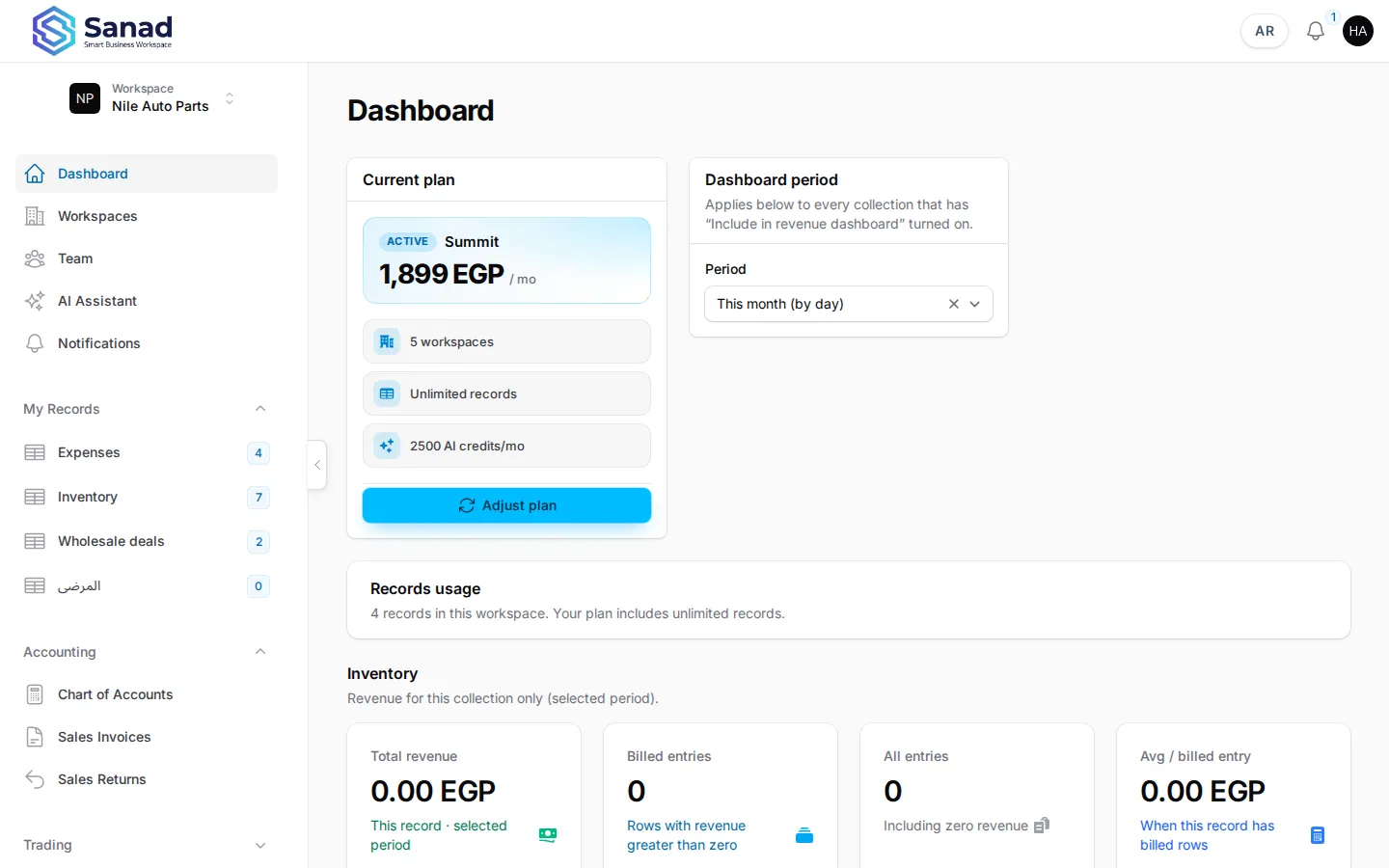
-
Step 2
Confirm the plan gate
Trading appears only when the workspace subscription is Summit / Business. If modules are locked, use Adjust plan on the dashboard or contact Sanad support.
Screenshots show the English workspace UI.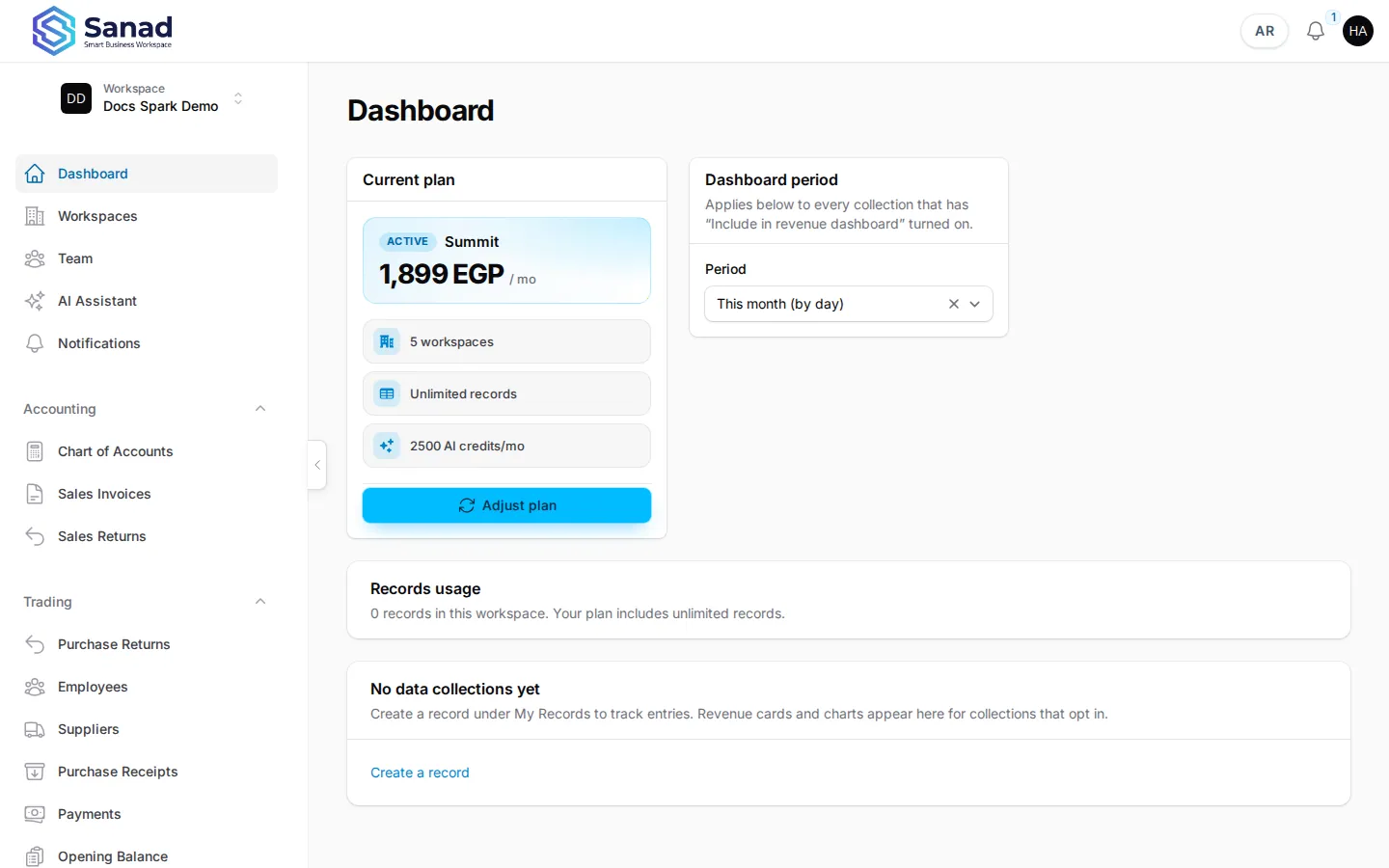
-
Step 3
Assign Trading permissions
Settings → Roles & Permissions → tick Trading — List / Create / Edit / Delete as needed. Purchase and payment screens stay read-only after posting; corrections use return documents.
Screenshots show the English workspace UI.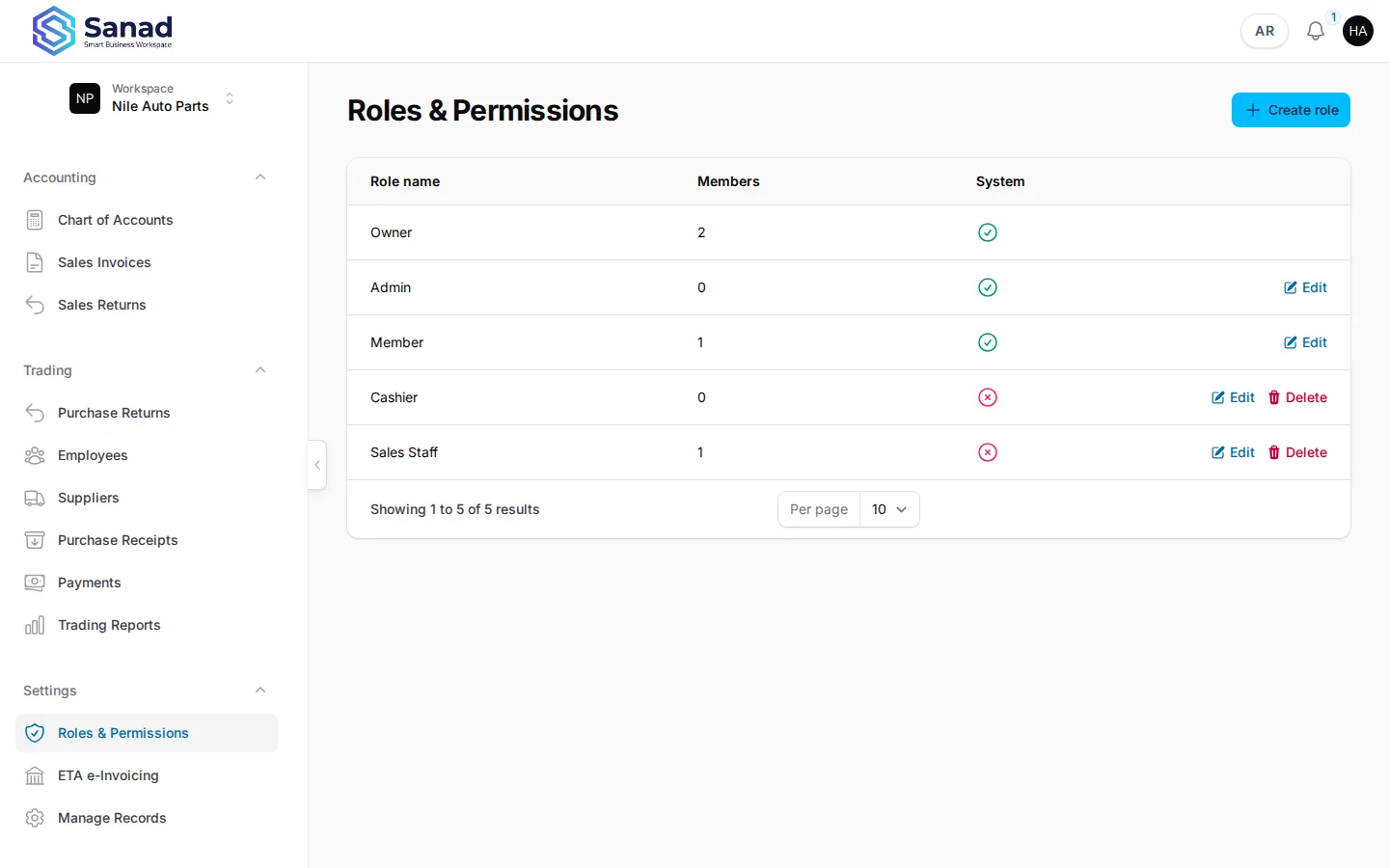
Related articles
Suppliers
Maintain your supplier directory before recording purchase receipts or opening balances.
Purchase receipts
Record stock received from a supplier. Stock and supplier balance (AP) update together when you save.
Plans and billing
What each plan unlocks, how to request a change, and what Pending payment means.